How to put your family calendar on your TV
The TV is the biggest screen in the house, it's already mounted, and it's idle 20 hours a day. Putting the family calendar on it is an obvious idea, which is why so many people search for it and then discover that neither Apple nor Google ships a calendar app for the living room. Here's every route that works, roughly in order of effort, and what each is like to live with. (We make Callie, one of the options below.)
1. Mirror your phone or laptop: fine for a glance, not for a wall
AirPlay from an iPhone or casting a Chrome tab with Google Calendar gets the week on the TV in ten seconds, and it's the right move for a one-off, like planning the month together on a Sunday night. As a permanent display it fails quickly: mirroring ties up the phone, stops when it sleeps or leaves the house, and burns battery. Treat it as the demo, not the setup.
2. A calendar app on a streaming box: the set-and-forget route
This is the category most people don't know exists. Streaming boxes run apps; some of those apps are calendars that sit on screen all day.
On Apple TV, tvOS has no built-in calendar (we wrote about that gap separately), but the App Store has third-party options. Ours is Callie: a full-screen family week where every person gets a color, events are tagged to people automatically from the names in event titles, and idle time turns into a photo frame fed by your iCloud or Google Photos shared album. It reads private feed links from iCloud and Google (paste a link, no account passwords) and stays in sync all day, every day. $3/month per family, on as many screens as you own.
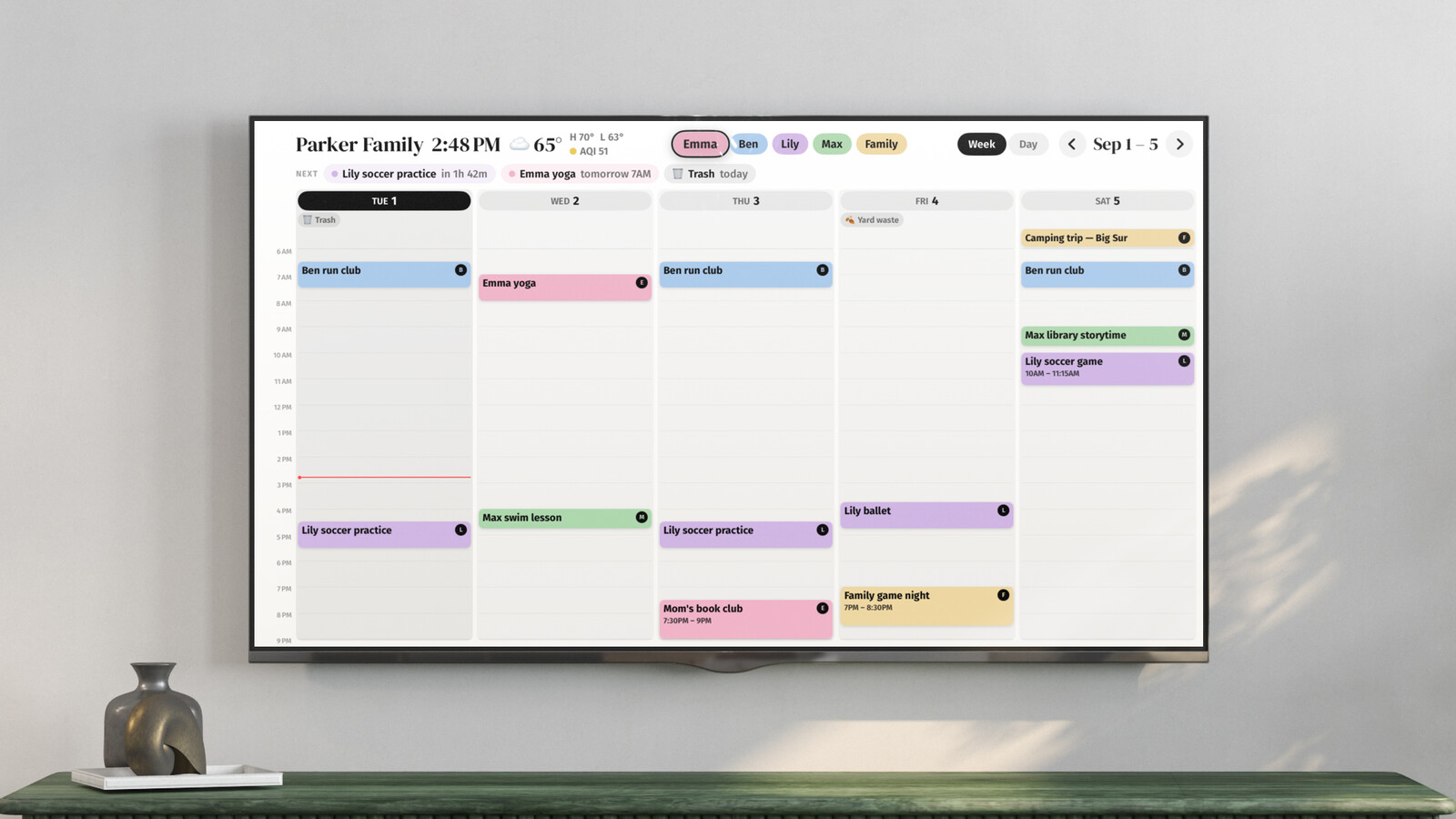
On Fire TV and Google TV / Android TV, apps like Mango Display turn the TV into a calendar-plus-widgets dashboard, with a free tier and a $5.99/month Pro plan. Worth knowing: as of this writing there's no official Google Calendar app for Google TV, so you're using third parties on Google's own platform, too.
3. A browser dashboard on a stick or spare computer
DAKboard renders a clean calendar/ weather/photos page in any browser, so anything that can hold a webpage full-screen (a Raspberry Pi, an old laptop, some smart TVs' built-in browsers) becomes a wall display. The free plan covers two calendars on a fixed layout. The catch on a TV specifically: TV browsers are clunky, so most DAKboard setups end up on a Pi behind the screen, which moves this into DIY territory.
4. Buy a dedicated calendar screen
The Skylight Calendar ($149.99–$599.99 plus $79/year for the full feature set) and Hearth Display ($699 plus $9/month) solve the problem with new hardware: a touchscreen that is only a family calendar. They're good products with real costs, and they make the most sense when touch-at-the-wall is the feature you're after. If you're weighing one, start with the five-year math.
What actually survives daily use
Two questions sort the options fast:
- Does it stay on without you? Mirroring doesn't. Apps and dashboards do. This is the difference between a calendar you have and a calendar the family sees.
- Who fixes it when it breaks? A Pi build is yours to maintain. An app updates itself. A $600 touchscreen is a support ticket.
Our biased-but-sincere recommendation: check what's plugged into HDMI 1 before buying anything. An Apple TV already there means a 6-digit code stands between you and the week on the wall; a Fire stick means Mango; a bare TV plus a drawer Pi means DAKboard. Save the dedicated screen for the case where none of those fit.
Keep reading
- The best family calendars in 2026: apps, displays, and your TV
- 6 Skylight Calendar alternatives worth a look in 2026
- Is the Skylight Calendar worth it? The five-year math
Callie puts the family calendar on the Apple TV, iPad, and iPhone you already own. See how it works or start free.